Adding drivers
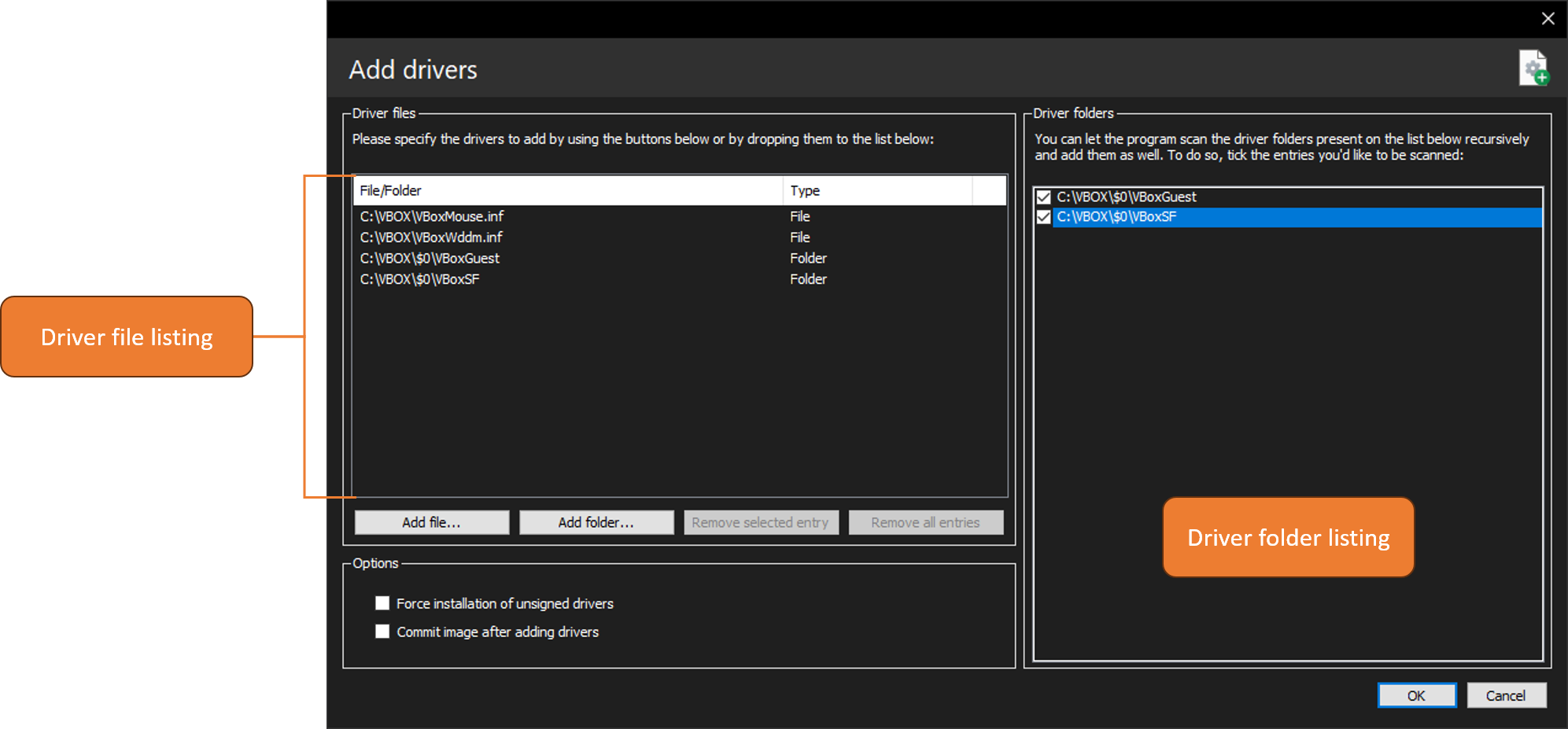
With DISMTools you can add third-party drivers to a Windows image. This action can be accessed by clicking Commands > Drivers > Add driver...
Target OS support
This action is supported on the following platforms:
| Platform | Supported? |
|---|---|
| Windows 7/Server 2008 R2 | ✔ |
| Windows 8/Server 2012 | ✔ |
| Windows 8.1/Server 2012 R2 | ✔ |
| Windows 10/Server 2016/2019/2022 | ✔ |
| Windows 11/Server vNext | ✔ |
This action is supported on DISMTools 0.3 and newer
NOTE: this action is not supported on online installations
Usage
You need to specify driver packages and/or folders to add to your Windows image by adding or dropping them to the driver files list. Folders get automatically added to the driver folders list, which allows the program to scan the folders you want recursively for driver packages.
You may also need to specify some settings in order to get the result you want.
Options
- If you're testing a driver, you can skip the signed driver requirement on x64 systems by forcing the installation of unsigned drivers, though it may cause instability in the resulting image
- If you want, you can commit the image after adding the drivers